
Dawwerni for cafés: the complete tutorial
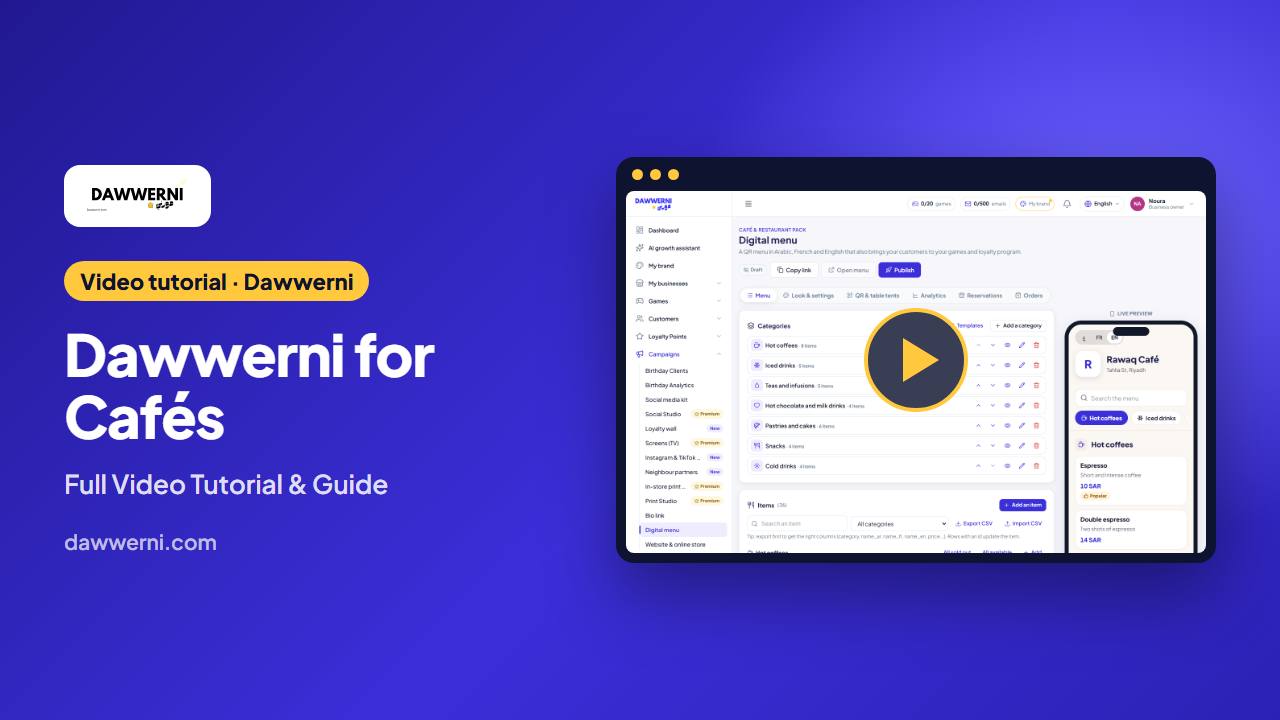 Video coming soon
The video is coming soon. Meanwhile, here is the complete written guide: every chapter of the tutorial, step by step.
- Create a game in your café’s name and set prizes, odds and limits to control the budget.
- Print the QR for the counter and receipts, verify wins and redeem prizes at the till.
- POS register, digital menu, TV menu boards, gift cards and live nights in one place.
- A digital loyalty card instead of paper stamps, and Google reviews the right way: the game is for every customer, no prize depends on a review.
Chapters
- Dawwerni for cafés
- What is Dawwerni?
- Create your first game
- Prizes, odds & limits
- Share & print your QR
- What the customer sees
- Verify a win
- Games that work in a café
- Game prizes at the till
- Your POS register
- Your digital menu
- TV menu boards
- Gift cards & live nights
- The loyalty card
- Google reviews, the right way
- Read your analytics
- Growth tips
The complete written guide
Dawwerni for cafés
Hi! This playlist is for cafés, bakeries, pastry shops and juice bars. Here's what we'll cover together. A café sells many small tickets a day. A quick game turns each one into a customer who comes back. First the games, then the café tools: the till, the digital menu, your TV, gift cards and live nights. Everything is linked: the same game shows on your TV, on every receipt and on your menu.
What is Dawwerni?
Hi! In this video you'll see what Dawwerni is, and why everything starts with a game. Dawwerni is first a games platform. It turns a single visit into a customer who comes back. Your customer scans a QR code and plays a short game on their phone, with no app to install. If they win, they leave their name and phone number to receive the gift you chose.
They get a one-time code with a QR. To collect the gift, they come back to your shop. And you follow every player, every winner and every visit from your dashboard. Your business type then unlocks its own tools: digital menu, POS register, appointments, listings and more. Two yearly plans: Standard for one business, Premium for two businesses and more tools.
Create your first game
Hi! In this video we'll create your first game together, step by step. It takes about five minutes. From your dashboard, click Create a game. You can also find it under Games. Pick a ready template, or start from scratch. Everything stays editable. Give your game a name, choose the type, Spin and Win is perfect to start, then pick a theme and check the live preview.
Write the title players will read, and one short sentence about what they can win. Add your prizes. Each one has a win percentage, and a Try again slot keeps the game fair and affordable. Write the message players see after the game, choose a cover, then click Submit. Your game is now live in All games.
Prizes, odds & limits
Hi! Here's how to design prizes that feel generous and stay profitable. Each prize has a win percentage. The box at the top shows the real chance to win and to lose. The total must reach one hundred percent. One click on Auto-balance fixes it for you. For a limited stock, choose Fixed number of winners. When a prize runs out, it leaves the draw.
Play again in days protects you: one means once a day, seven means once a week. Quick math: multiply each prize's chance by its cost. In this café example, a play costs about one point seven riyals. Tip: mix one big prize with a low chance and several small prizes valid on the next visit.
Share & print your QR
Hi! Your game is ready. Now let's put the QR code where your customers will see it. In All games, every game has its QR code, its player link, and a row of actions. The flyer generator makes a ready poster: pick a template and download it as PNG or PDF. The in-store print kit gives posters, table tents, counter cards and stickers with your QR.
Kiosk mode turns a tablet at the counter into a game anyone can play, no login, and it resets after each player. Got a TV? Add a Play and win QR slide. Customers scan it right from their seat. Put it where people pay and wait, and tell your staff one sentence: scan, you might win a gift!
What the customer sees
Hi! Let's look at the game from your customer's side, on their phone. They scan the QR and the game opens in the browser, in Arabic or English. The prizes are shown below. When they win, a window asks for their full name and phone number. Email and birthday are optional. They get their prize with a QR and a short code, to show at the counter.
They can also share the game with friends. And if they lose, they can try again after the waiting days.
Verify a win
Hi! A customer shows you their winning code. Here's how to check it and hand over the gift. The fastest way: scan the prize QR with your phone while you're logged in to Dawwerni. Each code works once. If you see Already verified, the gift was already given: don't hand it over again. For your staff, use Cashier mode: find the customer by QR or phone number, then tap Mark as given.
In the customer list, every winner shows Claimed or Not claimed, so you always know what's left. Good practice: never accept a screenshot of someone else's prize, and give staff their own cashier login.
Games that work in a café
Hi! In this video you'll see which games work best in a café, and which prizes bring people back. Pick quick games, under thirty seconds, that people can play while their coffee is being made. The scratch card is perfect: one finger, ten seconds, and the prizes are listed below. Small prizes valid on the next visit work better than big discounts. Here's a sample prize list for a café.
In the game editor, open At the till (POS) on each prize and choose what the cashier applies, like a free croissant. Put the game where people wait: a Scan and win QR on every receipt and a Play and win banner on your menu.
Game prizes at the till
Hi! A winner is at your counter. Here's how the POS register applies the prize to the sale in one key. Link the customer by phone with F4. A pink line shows their waiting prize: tap it, then Apply. Or press F3, scan the winner's QR or type the code, press Check, then add the prize to the sale. The prize lands in the cart: here, a second coffee at half price and ten percent off the whole order.
Each prize type is applied automatically. A gift prints at zero on the receipt so you know what to hand over. A prize works only once. Scan it again and the till shows when, and on which receipt, it was used. Table bills work too: on the open bill, tap Prize, scan the winner's code, and the prize comes off the bill.
Your POS register
Hi! In this video you'll set up the POS register for your café and make your first sale. Go to POS register, Products, Import. Choose Digital menu: categories, items, photos and prices are copied in one click. Open a coffee to add real sizes, S, M and L, each with its own price, plus options like oat milk. Open the till with your cash float. Then tap a product, pick the size and the milk, and add it.
Press F8, pick Cash or Card and see the change. Print or WhatsApp the ticket, with the Scan and win QR. In the evening, count the cash, check the difference and print the Z report. The dashboard even counts the game prizes redeemed.
Your digital menu
Hi! In this video you'll create your café's QR menu in a few clicks, from a ready-made template. Go to Campaigns, Digital menu. Check your menu link, then press Create my menu. Pick Café, Bakery, Juice bar or Saudi café. Each one comes with categories, items and typical prices. Untick what you don't sell. Check names and prices, then press Publish. For nicer photos, press Remove background: it cuts out the dish right in your browser.
In QR and table tents, download the menu QR for the counter, or print one table tent per table. Your customer scans and sees your menu with photos and prices, and switches language at the top.
TV menu boards
Hi! In this video you'll turn any smart TV into a menu board for your café, with your game on it. Go to Campaigns, Screens TV, then Templates. Filter on Café: menu boards, happy hour, Wi-Fi and Play and win. Faster: open Starter packs and add the Café pack in one click. Seasonal packs like Ramadan are there too. The coffee menu board reads your digital menu, so prices and items update by themselves.
Mix in a happy hour slide for the quiet afternoon, and the Play and win slide: customers scan it from their seat. Then pair the TV with its code. Premium includes one screen; extra screens come from the Dawwerni Shop or Enterprise.
Gift cards & live nights
Hi! In this video you'll see two extras for cafés: gift cards, and live nights on your TV. In Loyalty points, Gift cards, press Sell a gift card: amount, design, recipient and a personal message. Send it by WhatsApp. The recipient gets a page with the balance and a QR to show at the counter. To spend it, press Use a gift card, scan the QR and take any amount. The rest stays on the card.
Live Quiz Night turns your TV into a stage: write questions, schedule the night, and guests join from their phones. Table Duel: one scan and the whole table plays a mini-game to see who wins the coffee. Start with a demo room. Idea: a quiz every Thursday evening with small prizes, and gift cards to sell at Eid. Karaoke Night works the same way.
The loyalty card
Hi! In this video you'll switch on a digital loyalty card. It works even for customers who never play. Go to Loyalty points, then Loyalty card. Choose points, or a stamp card: perfect for cafés and barbers. Set the rule: ten stamps fill the card, and a full card gives a free coffee. Choose one balance or two, then save. Your loyalty card is on.
At the counter, open Cashier mode, find the customer, and tap Add stamp after each purchase. Tap Loyalty card: the customer scans the QR, or you send the card by WhatsApp. The card opens in the phone browser, nothing to install. It shows the stamps, the next reward and a QR for the counter.
Google reviews, the right way
Hi! Here's how to get more Google reviews with Dawwerni, while following Google's rules. In your business settings, choose Google reviews as the redirect, paste your review link, and test it. In each game, write a neutral message after the game, like: Thank you! Tell us how we did on Google. Keep Show an optional review invitation before the game switched off when your link is a Google review page.
The game is for every customer, happy or not. Never make a prize depend on a review or on the stars. Ready designs help you ask everyone the same way: a Leave a review TV slide, posts and print cards. Got a bad review? Reply politely within two days, then find the customer in your CRM and talk to them privately.
Read your analytics
Hi! In this video you'll learn where to read your numbers, in five minutes a week. Your dashboard shows plays and winners, with filters for today, this month or all time. Where your players come from shows visits and plays per channel: QR code, TV screen or social links. Games, then Overview: active games, prizes created, still available and won, plus the latest plays.
View statistics on a game gives players, plays, winners and the win rate. Participants shows new and loyal customers, prizes taken and not taken, and you can export to Excel. Few players? Move the QR and remind your staff. Winners don't collect? Make the prize more attractive.
Growth tips
Hi! Here's a simple plan for your first weeks, to get more players and bring them back. Follow your 7-day launch plan on the dashboard: one click per task, and some tasks tick themselves. Week one, launch your game. Week two, make it visible. Week three, start the loyalty card. Week four, review and adjust. Invite a neighbour business in Neighbour partners, to exchange customers.
Run an Instagram or TikTok giveaway, with winners drawn fairly. Prepare each season in advance: game theme, TV screens and posts in your colours. And every Monday, fifteen minutes: check your numbers, reply to reviews, and post your game once.
Turn visits into reviews, repeat visits and sales
Try Dawwerni free for 7 days. Setup takes about 10 minutes.